
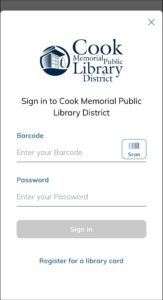
The Library’s app recently got a refresh that lets you keep track of you and your family’s checkouts, holds, and events.
Add Your Card
When you first open the app you will be prompted to log in with your library card number and password. See below if you are having trouble logging in to the app.
Add Multiple Cards
To add additional cards to the app:
- Tap on your initials in the upper-right corner.
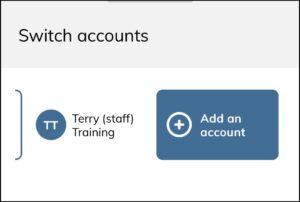
- Tap on Add an account in the pop-up.
- Enter barcode and password for each additional card.
- To switch accounts, tap on the menu icon on the bottom-right of the screen, then swipe to find the account you want to use in the top of the pop-up.
Tips for Event Registration
When you register for an event in the app, the active account you are using at the time is the card that will register for that event.
Cancel your registration for an event in the Events part of Account.
If you registered for an event outside of the app, for example on the Library’s website, and did not input your library card number, it may not appear in your list of registered events on the app.
My Card
Use the My card section to bring up your library barcode which will scan at our self-check stations. You can also add your library card to your Apple or Google Wallet from this screen.
Password Help
For any password issues, we suggest leaving the app to resolve them in My Account, then return to the app to log in.
Never set up a password? If you don’t have a library account password, see these instructions to set up a password in My Account.
Forgot your password? If you have an email associated with your account, you can reset it.
If you need additional help with your password, please contact our Check Out Desk online or by phone at 847-362-2330 x1306.
Discover more from Cook Memorial Public Library District
Subscribe to get the latest posts sent to your email.
Categories: Library News